
Chat guide
General Guide to the GFS Chat System
This guide is designed to walk you through the essential steps for using our private chat system: accessing your account, joining the official GFS space, entering the appropriate room, and updating your password, a mandatory and priority procedure during your first use. Once connected, an automatic invitation will be presented to you to join our private space “Groupe Financier Signature”, reserved exclusively for GFS members. After validation, you will be directed to the “General” room, which is the central point for our internal communications and professional exchanges.
How to open the application?
You can access your account using one of the following options:
- Direct URL: https://element.chat-gfs.com.
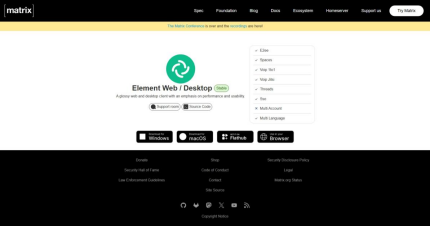
- Download available on the official Matrix.org - Element Web / Desktop website
- Element X mobile application:
Log in
If you are using the web version, simply enter your username and password provided in the invitation email:
- Click the “Log in” button.
- Enter your credentials.
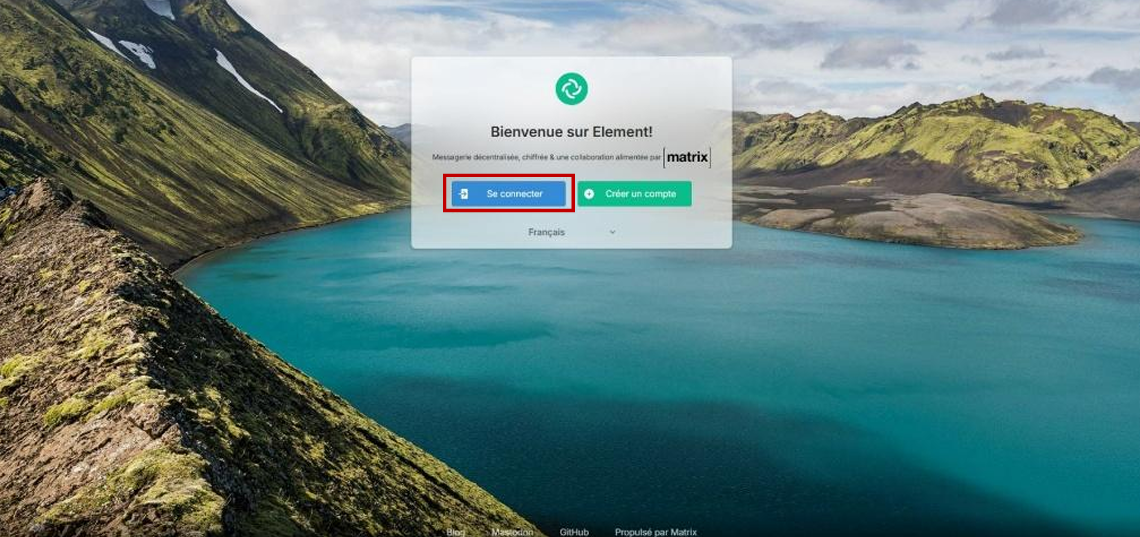
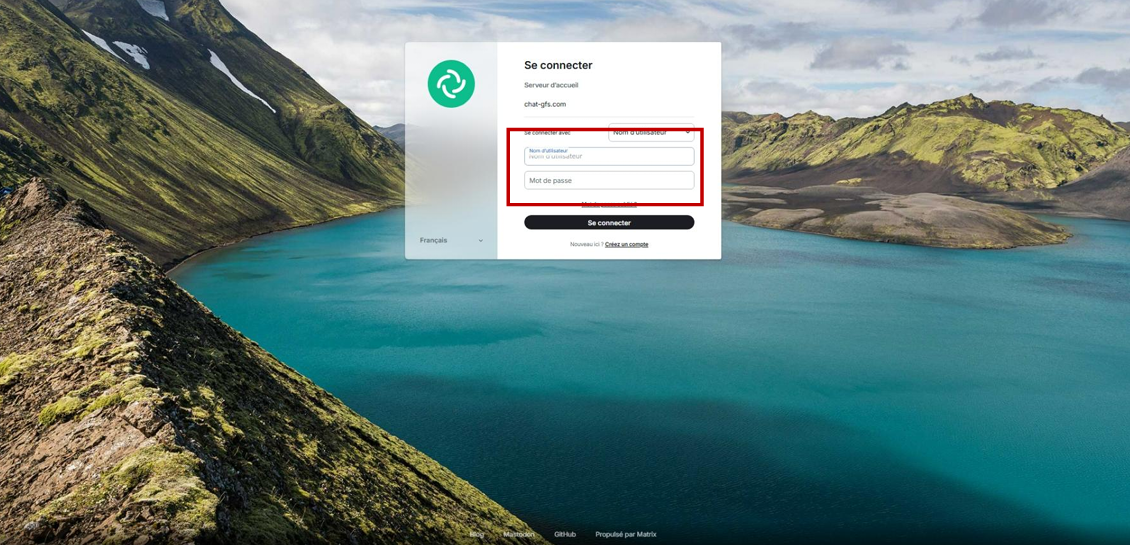
If you are using the Desktop application, here are the steps to follow:
- Click the “Log in” button.
- Click “Edit”.
- Enter the GFS private server name: chat-gfs.com
- Enter your credentials.

Mobile application
If you want to use the mobile application, it is similar to the Desktop application. Here is what to do:
- Choose: Log in manually
- Choose: Change account provider
- Replace matrix.org with our server chat-gfs.com.
- Enter your credentials.
Join our space:
Once connected, you will see an invitation to join our private space Groupe Financier Signature, reserved exclusively for GFS members. By accepting it, you will also access our “General” room, the central point for internal communication.
- Examples of invitations on the mobile application:
- Join the “Groupe Financier Signature” space.
- Join the “General” room
- Now you can chat with all members.
Change your password (required the first time).
- Go to “All settings”.
- In the “Account” settings, you will find where to change your password at the bottom.
Updating your password is a mandatory and priority procedure during your first use.